Free 3D Printing for Students
What We Can Do for You
Here at the FIZ, we offer free self-service 3D printing for students in order to support their success and creativity.
Available Printers
- Flashforge Adventurer 5M Pro (0.4mm nozzle)
- Neptune 4 Max (0.4mm and 0.6mm nozzle)
FIZ Rules
- If you are unsure or have any questions, please ASK any FIZ employee. We are more than happy to be of assistance.
- Please scan and fill out the QR codes near the printers, this helps us keep this service and many others in the FIZ, free for students.
- Items deemed to be illegal by federal, state, or Washington State University laws are prohibited. If such prints are found, they will be destroyed and disposed of, any prints in progress will be cancelled and removed, and any parties involved will be reported to the proper authorities.
- Do not attempt to service printers on your own, this includes clearing jams, loading filament, or any other malfunctions. Find a FIZ employee and notify them if you need assistance.
- Any damages to printers or FIZ property as a result of negligence, unintentional or otherwise, will require repayment.
Printing Restrictions
- No objects with an infill density more than 50%
- If your USB drive is larger than 32GB or not FAT32 format, then our printers will not be able to read them
- Please follow this naming convention for prints:
FIRST NAME_LAST INITIAL_PURPOSE Ex. J_DOE_ENGR101 | J_DOE_PERSONAL | J_DOE_CLUBNAME
Settings Check
If you just need to check your slicer settings you can do so here, otherwise you can skip over this and continue with the Getting Started section
Printer: Flashforge Adventurer 5M Pro
Nozzle Size: 0.4mm
Filament: SUNLU PLA+ 2.0
Bed Type: Textured PEI Plate
Getting Started
If you are new to 3D printing, this guide will walk you through up to starting a print on one of our printers and provide additional resources if you wish to learn more.
Printing can be broken up into 3 parts, the model, the slicer, and the actual printer and printing itself. Each part has its own section below that can be gone through in order, or you may pick and choose as needed.
The 3D Model
The primary focus of this guide is to get you 3D printing as fast as possible, as such we will not be going over how to create your own models.
If you wish to start making your own 3D models, here are several good, free programs:
- Onshape – free tier limited to web browser only (opens in new tab)
- Autodesk Fusion 360 (opens in new tab)
- TinkerCAD (opens in new tab)
- Blender (opens in new tab)
If you simply want to find ready-made models you can search for them using your preferred search engine, or on any of the websites listed below:
- Printables (opens in new tab)
- MakerWorld (opens in new tab)
- Thingiverse (opens in new tab)
- Yeggi (opens in new tab)
The Slicer
Before you can upload a file to a 3D printer, you need to process it with a software called a slicer, this is why preparing a file for 3D printing is also called “slicing”. There are a few different slicing programs available, however, this guide will only go over the one that we at the FIZ use:
You are free to use a different slicing software if you prefer, but FIZ employees will be unable to provide any assistance if you encounter problems.
Go to the OrcaSlicer downloads page (opens in new tab)
Official installation instructions can be found near the bottom of the page
Click the button for your relevant operating system
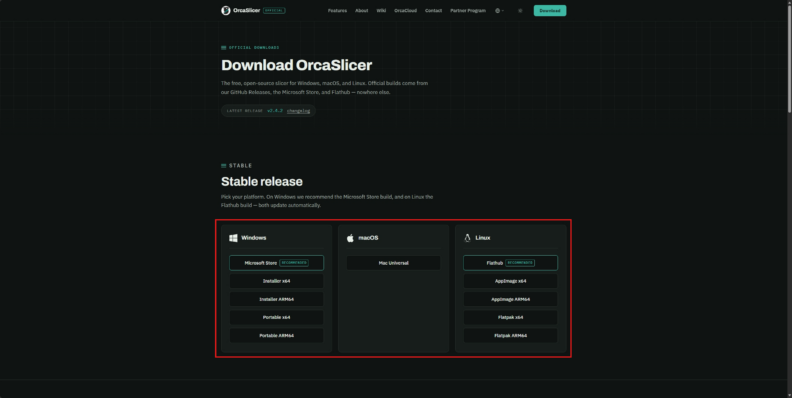
Open OrcaSlicer after the installation finishes, the Setup Wizard should appear for the initial start up
Click Get Started and continue through the setup
Select the correct region for you (North America)
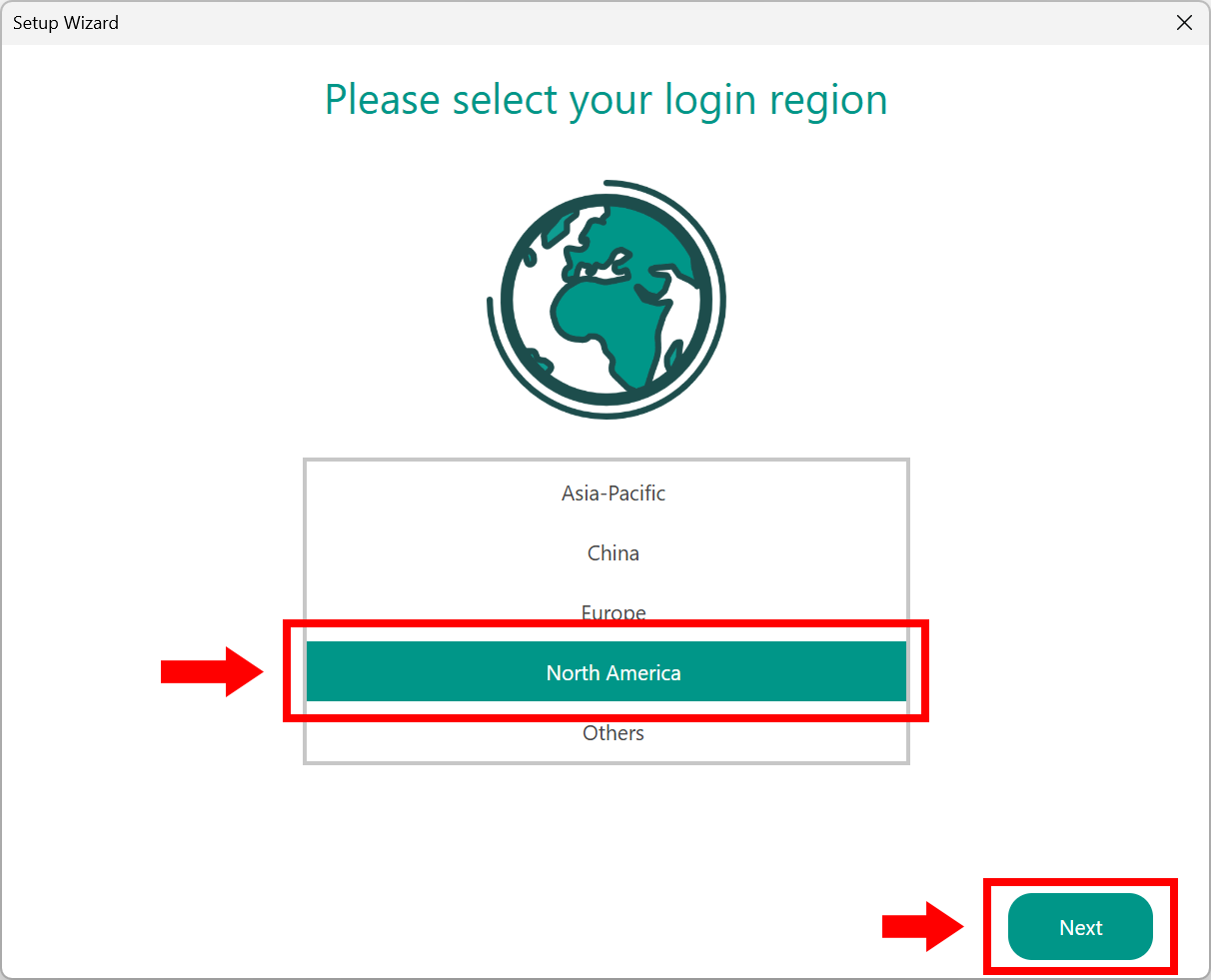
Scroll through Printer Selection and find the Flashforge Adventurer 5M Pro category and select the 0.4mm nozzle, then click next
Scroll through Filament Selection and find Sunlu PLA+ 2.0 and check it
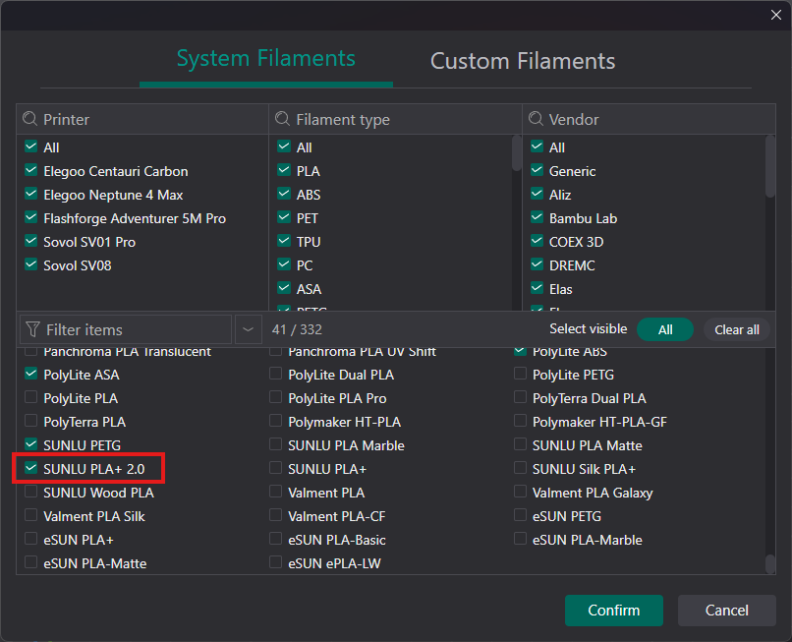
Continue through the Setup Wizard, you do not need to check any of the subsequent options. Keep going until the Setup Wizard finishes
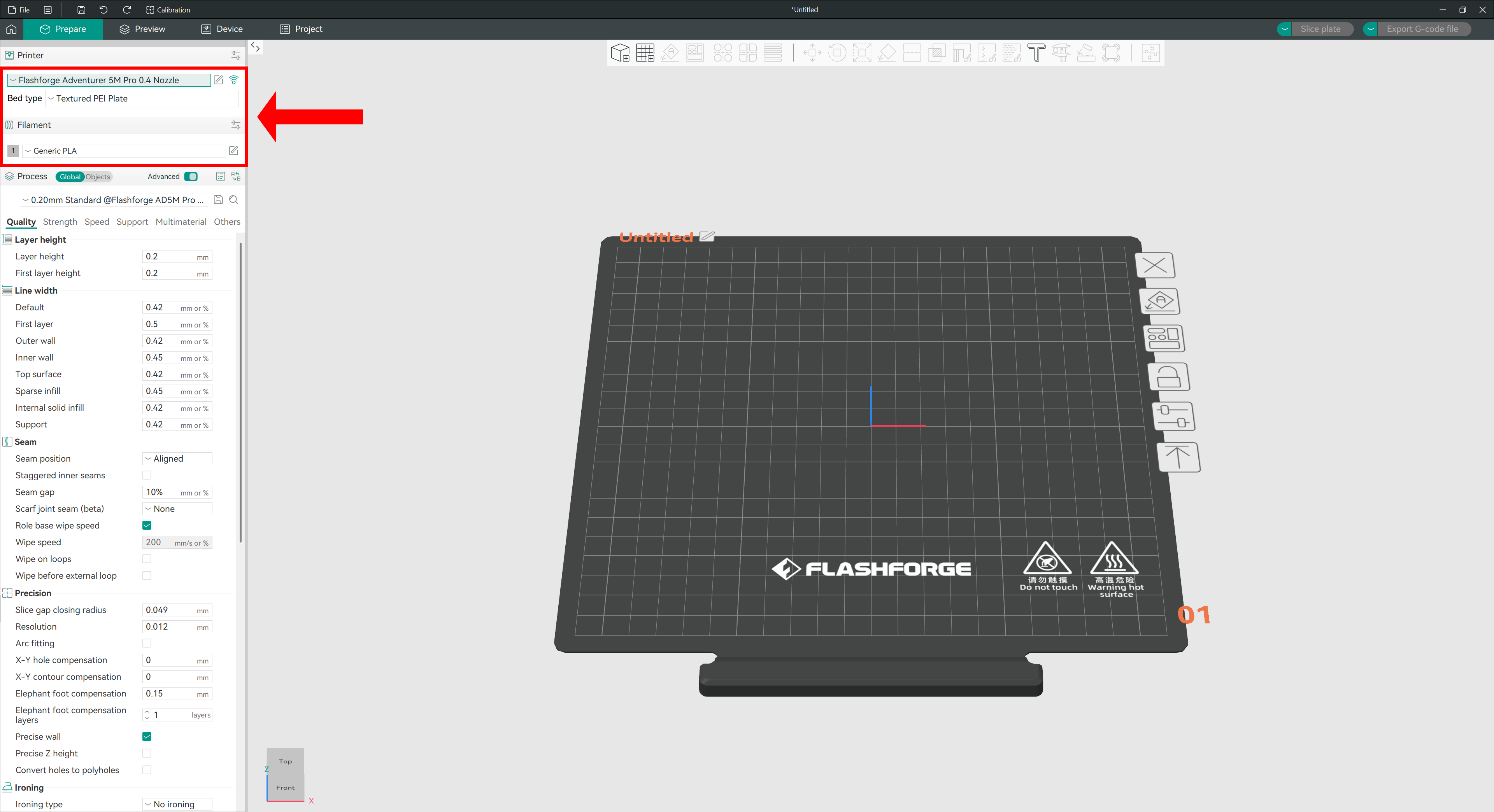
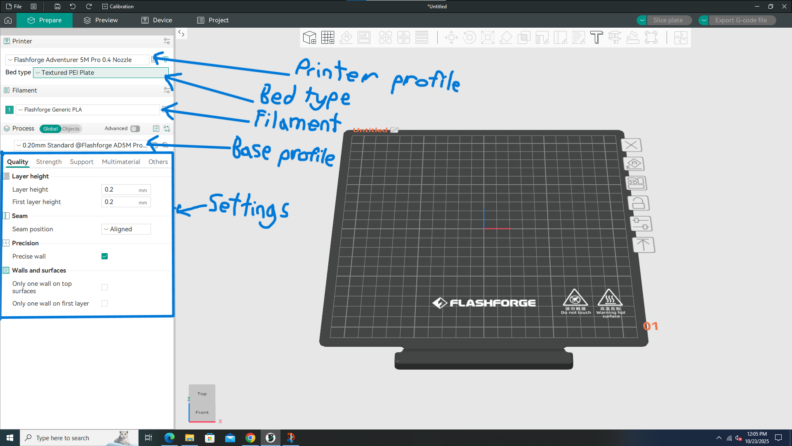
The main OrcaSlicer workspace will look similar to the image below, with the dropdown menus to change printers and filament outlined
Using OrcaSlicer
Click on New Project, then ensure the correct printer profile (including nozzle size for the printer) and bed type are selected. The Flashforges all use textured build plates The Filament type should be the filament you plan on using. The settings are stored in several presets called process profiles. Generally, the default one with 0.2mm layer height is adequate for most prints.
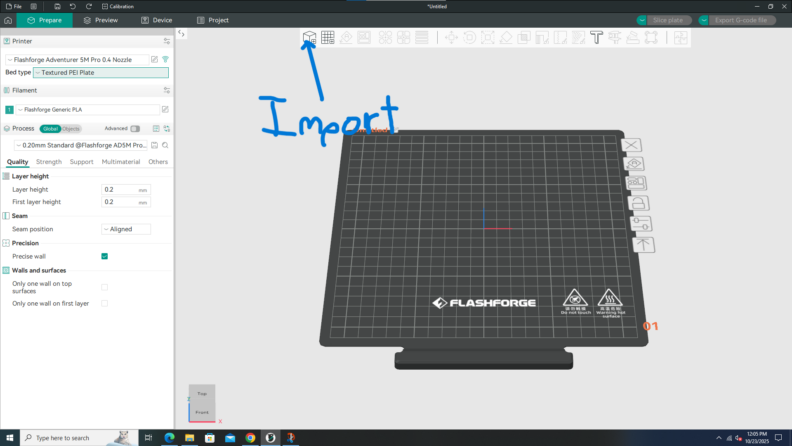
To import a model (main file types: STL, STEP, 3MF), click on the import object button to select files from your computer to the program.
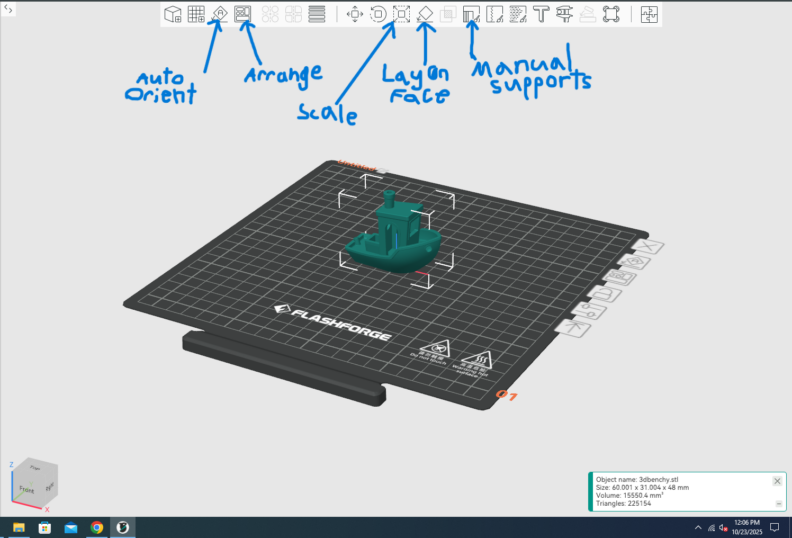
Once you have your model imported and selected, you can navigate by rotating with left clicking on the background and you can move by right clicking the background. You can also use the tools here to move your model, rotate it, scale it, and several other options. For just getting started, you should select your object and click auto orient and arrange to get your part(s) in an optimal printing configuration. You can play around with the tools here if you have time and would like to learn more advanced techniques.
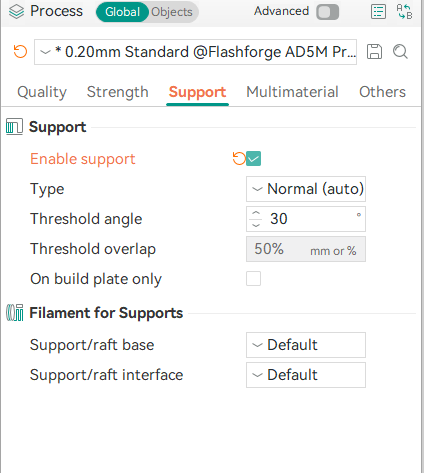
If your model has overhangs that are not supported on both sides or have a slope steeper than 40 degrees you should enable supports to ensure the print is successful. To do so, navigate along the process settings to the support tab and check the relevant boxes. You can play around with these settings to see what produces the best result.
Once your settings are good, you can push the slice button in the top right of the screen. This will generate the G-code that the printer reads and gives you a preview of any supports and what the print will look like. The slider on the right side allows you to see the section view of the print at each layer level. You can make any changes you might want in your settings to fix problems that you notice here. In this image I would probably reorient the model to sit on a flat face to be easier to print. Any time you change settings you will have to slice it again.
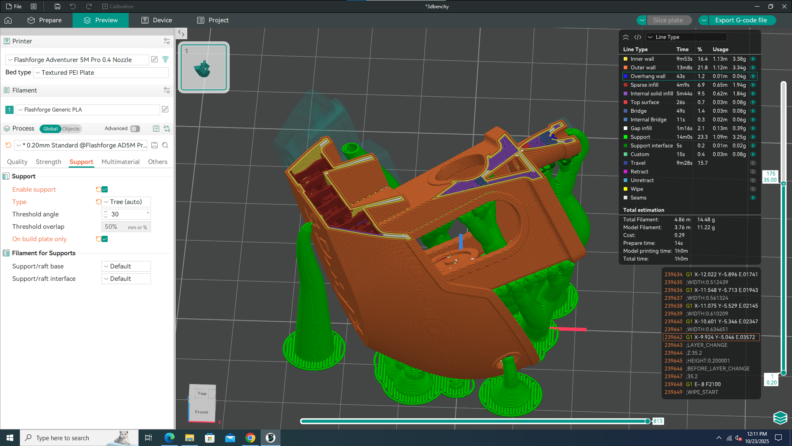
Once you have the model sliced to your liking you can export the model to a flash drive by pushing the export G-code file button in the top right. Also take note of the estimated print times and material usage for your print to fill out the printer sign-in form in the FIZ.
Using the Flashforge Adventurer 5 Pro Printers:
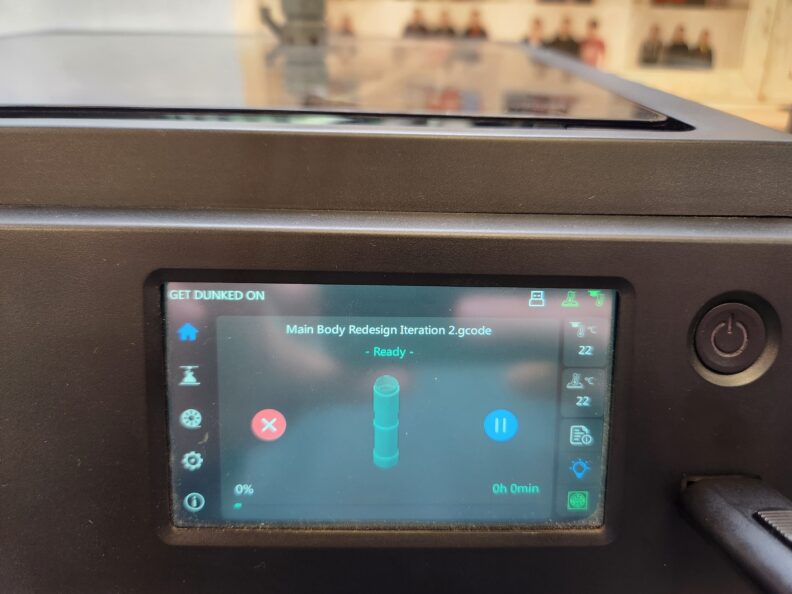
Make sure the printer is on (if not press the power button and it will initialize). Once you have the G-code on a flashdrive, you can plug the flash drive in to the printer. The screen is a touchscreen and easy to navigate.
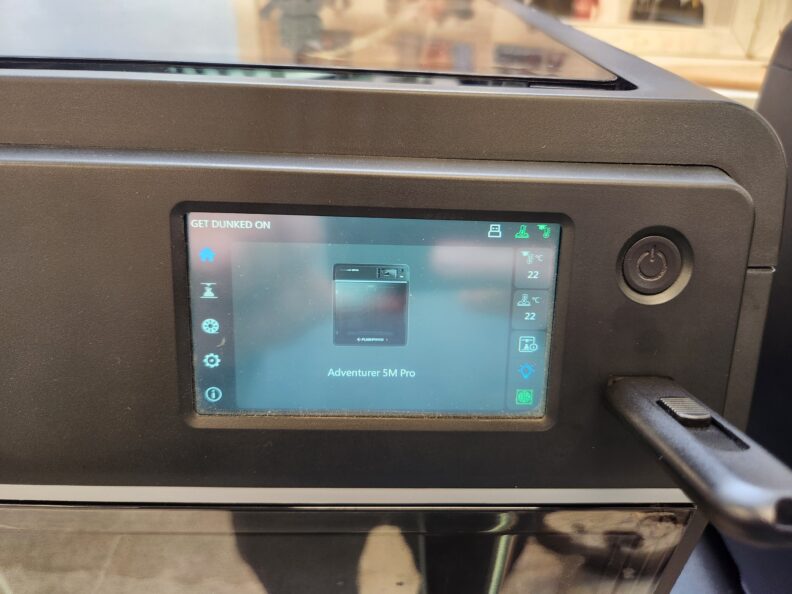
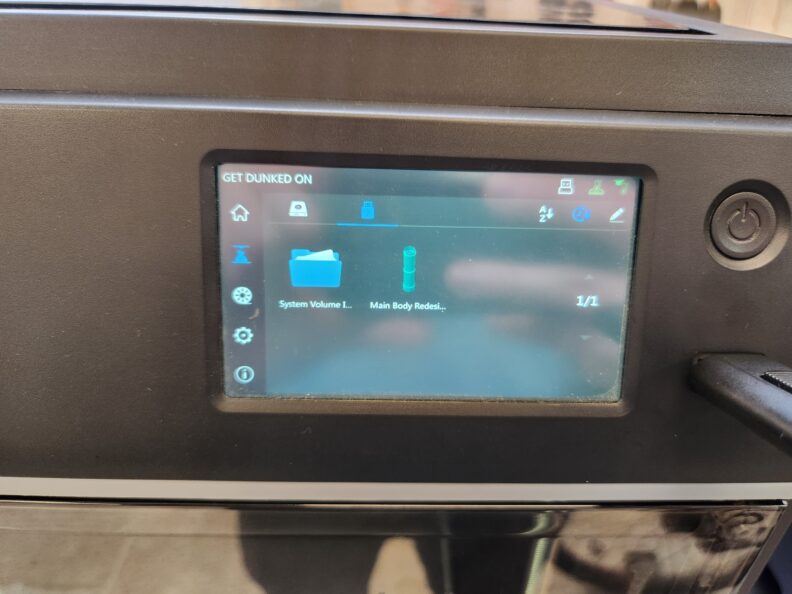
Select the file you want to print from the flashdrive dropdown in the printing tab (The second menu option).
Now you can select the print option to print the file. This gives more estimates of the filament usage (grams) and the length of the print time in case you forgot to write it down in the signup sheet. Make sure to check the box leveling for automatic bed leveling. The file will automatically be copied over to the printer and you can remove your flash drive.
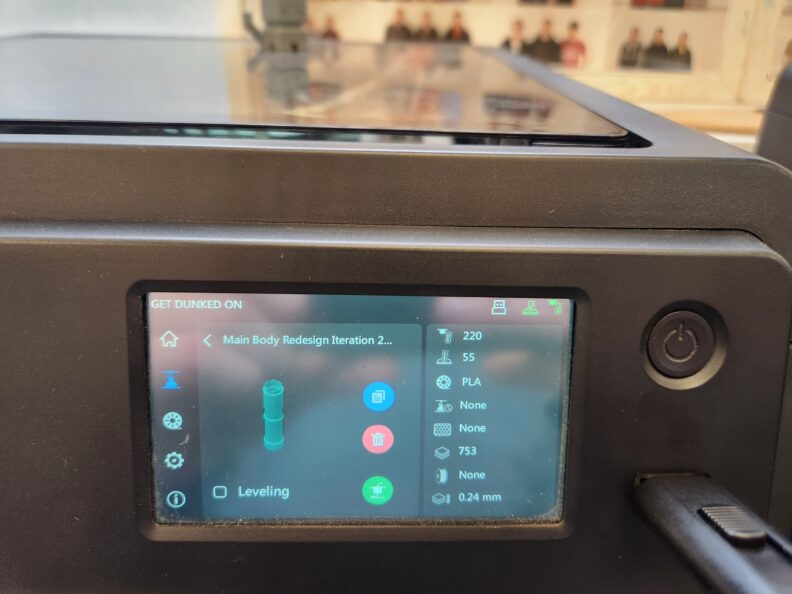
While printing you can cancel or pause the print if needed. Ensure the first layer goes down before you leave the printer unattended due to most prints failing on the first layer.
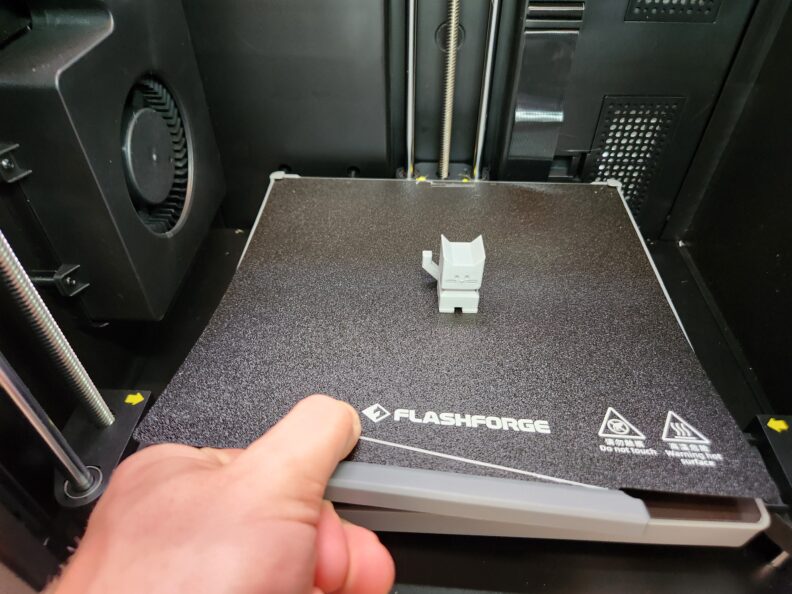
When the print is done, wait for the bed to cool, and then you can remove the print. You can bend the PEI sheet to help release parts, but most should come off easily once cool. If you need help, please ask FIZ employees.
Additional Resources:
(The rest of the page are links that open in new tabs)
- OrcaSlicer Github (Wiki for Orcslicer)
- All3DP OrcaSlicer Tutorial (Helpful guide for Orca Slicer)
- OrcaSlicer 101 Video (Orca Slicer Tutorial)
- Planet3DP OrcaSlicer Tutorial Video (Orca Slicer Tutorial)
- OrcaSlicer Setup Video (Orca Slicer Set Up Tutorial)